
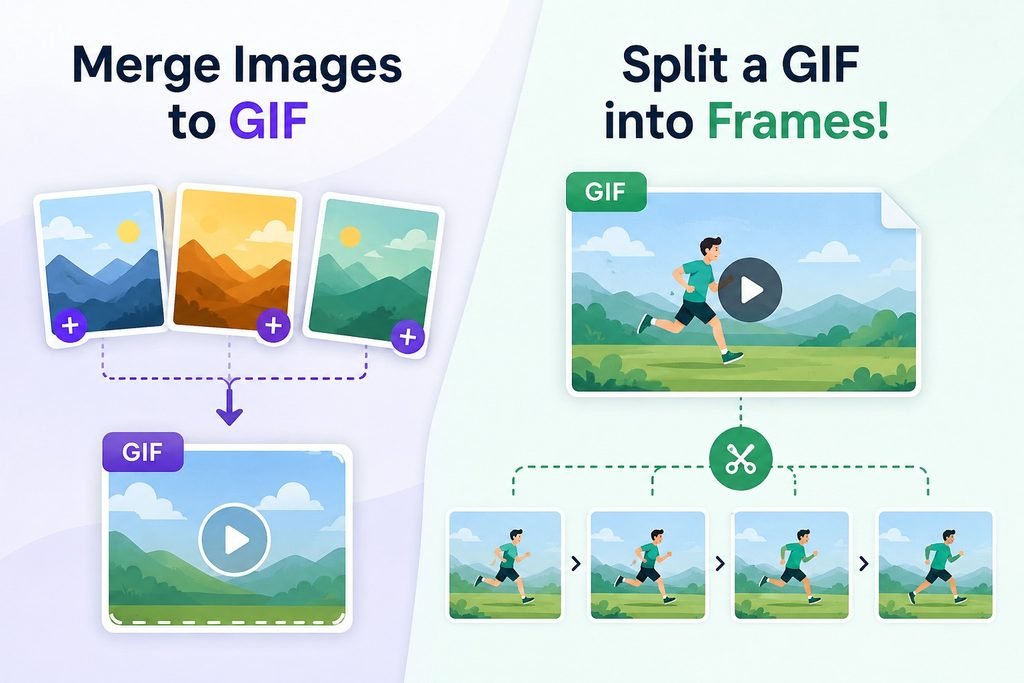
Merge Images to GIF or Split a GIF into Frames!
Drag & Drop Images Here
JPEG · JPG · PNG · GIF · WEBP
Animated GIFs are everywhere: in memes, product demos, tutorials, chat apps and marketing emails. But two very common jobs combining a batch of images into one animated GIF and pulling an existing GIF apart into its individual frames are surprisingly hard to do without installing software or uploading your files to a stranger’s server.
The GIF Merger & Splitter tool solves both problems in a single, free, browser-based app. There is nothing to install, no account to create, and no file ever leaves your device. Every pixel is processed locally in your browser using the HTML5 Canvas API and JavaScript, which means your images stay private and the tool works even on a slow or unreliable connection, since there is no upload or download from a remote server involved in the processing itself.
What This Tool Actually Does
The tool has two modes that live side by side in the same interface, so you never have to hunt for a separate page or download a second app:
⦁ Merge mode: takes multiple JPEG, PNG, GIF, or WEBP images and combines them into a single animated GIF file, in the order and timing you choose.
⦁ Split mode: takes one animated GIF and breaks it apart into individual still frames, which you can save as PNG or JPG files. Both modes run entirely client-side. The merge process draws each image onto an HTML canvas, reduces the colors to a GIF-compatible palette, and writes a valid GIF89a file byte by byte using the LZW compression the GIF format requires.
The split process does the reverse: it reads the raw bytes of your uploaded GIF, decodes the LZW-compressed image data frame by frame, respects each frame’s timing and disposal method, and renders every frame back out as a clean, full-size image. Because this all happens in JavaScript running in your own browser tab, there is no server-side bottleneck, no file-size cap imposed by an upload limit, and no waiting in a processing queue behind other users.
How to Merge Images into a GIF, Step by Step
- Open the tool and make sure “Merge to GIF” is selected at the top of the card. This is the default mode.
- Add your images by dragging and dropping them onto the dashed drop zone, or click “Add from Device” to browse your files. You can add JPEG, JPG, PNG, GIF, or WEBP images, and you can add several at once.
- Review the thumbnail list that appears below the drop zone. Each file shows a small preview and its filename, with a small × button if you want to remove any single image before continuing.
- Set the frame order. By default, images animate in the order you added them, but you can switch to alphabetical filename order or reverse the upload order using the “Order” dropdown.
- Choose a frame delay. This controls how long each image stays on screen before the animation advances to the next one, from a fast 0.1 seconds up to a slower 2 seconds per frame.
- Open “⚙ More Options” if you want finer control. Here you can choose whether the GIF loops forever or plays once, and decide whether the output canvas should match your largest image, your smallest image, or your first image, which is useful when your source photos are different sizes.
- Once at least one image is loaded, the “Merge Images to GIF” button lights up in solid green. Click it to start processing.
- The tool draws each image onto a canvas, converts the colors to a GIF-safe palette, and compresses the frame data. A progress bar shows how far along the encoding is.
- When encoding finishes, your browser automatically downloads the finished file as merged.gif. No further action is needed, and nothing was ever sent anywhere outside your browser.
If you want to start over, the “Clear All” button instantly wipes the current file list and resets every option back to its default, so you can begin a fresh batch without reloading the page.
How to Split a GIF into Frames, Step by Step
- Switch to “Split GIF” mode using the toggle at the top of the tool card. The drop zone and options update automatically to match this mode.
- Drag your animated GIF onto the drop zone, or click “Add from Device” and choose the file. Only one GIF is processed at a time in split mode.
- Pick your preferred output format for the extracted frames: PNG for lossless quality with transparency support, or JPG for smaller file sizes when transparency is not needed.
- Use the “Extract” dropdown if you do not need every single frame. You can choose to extract every frame, every second frame, or every third frame, which is handy for long animations where you only need a representative sample.
- Click the green “Split GIF into Frames” button once your file is loaded.
- The tool reads the GIF’s internal structure, decodes each frame’s compressed image data, and reconstructs every frame exactly as it was meant to display, including transparency and any frame to frame changes.
- Each frame downloads automatically as a separate numbered image file, named after your original GIF with a sequential frame number appended, so the files stay organized and easy to sort.
Because browsers stagger multiple automatic downloads slightly to avoid overwhelming the download manager, a GIF with many frames may take a few extra seconds to finish saving every image the progress bar reflects this and will reach 100 percent once every frame has been saved.
Why You Might Need to Merge Images into a GIF
Turning a set of still images into an animated GIF is one of the most common small tasks in everyday digital work, and it comes up in more situations than people expect:
⦁ Turning a burst of photos from a phone into a quick animated preview to share in a group chat.
⦁ Building a lightweight before-and-after animation for a product page without needing video hosting.
⦁ Creating a simple stop-motion effect from a sequence of screenshots for a tutorial or bug report.
⦁ Making a looping banner or logo animation for a website or email signature.
⦁ Compiling a set of chart or slide exports into a self-playing animated summary.
A GIF is still one of the most universally supported animation formats on the web. Unlike video, it plays automatically in almost every context chat apps, forums, emails, and social platforms without a play button, buffering indicator, or codec compatibility issue. That makes it the fastest way to share a short, looping visual sequence when a full video feels like overkill.
Why You Might Need to Split a GIF into Frames
Going the other direction pulling a GIF apart into its component images is just as common, especially for anyone editing, repurposing, or analyzing existing animated content:
⦁ Extracting a single clean frame to use as a static thumbnail or cover image.
⦁ Pulling all frames out so they can be re-edited, re-ordered, or re-compressed individually.
⦁ Recovering original artwork from an animation when the source files have been lost.
⦁ Studying how an animation is timed and sequenced, frame by frame, for design or QA purposes.
⦁ Feeding individual frames into another tool, like a slideshow builder, print layout, or presentation deck.
Because the split process decodes the GIF’s actual frame data rather than just taking screenshots, the extracted images are pixel-accurate reproductions of what was originally encoded, not lossy re-captures of whatever happened to be on screen.
Tips for Better Results
⦁ Keep merged GIFs to a reasonable number of frames. Animated GIFs are not compressed as efficiently as video, so a very long sequence of high-resolution images can produce a large file. For most sharing purposes, 5 to 20 frames strikes a good balance between smooth motion and manageable file size.
⦁ Use similarly sized source images when merging. The tool will automatically fit each image inside the chosen canvas size while preserving its aspect ratio, but starting with images of a similar resolution avoids extra empty space around smaller pictures.
⦁ Choose PNG when splitting a GIF that includes transparency, since JPG does not support transparent pixels and will fill them with a solid background instead.
⦁ If you only need a handful of key frames from a very long animation, use the “Every 2nd frame” or “Every 3rd frame” option in split mode instead of exporting every single frame.
⦁ For a smoother-looking animation, use a shorter frame delay like 0.1 or 0.2 seconds; for a slideshow-style effect where each image should be clearly readable, use 1 or 2 seconds instead.
Privacy and Performance
Because every operation happens locally using standard browser APIs, no file is ever uploaded to a server for processing. This matters for anyone working with personal photos, confidential screenshots, or proprietary artwork, since the images never leave the device they were opened on. It also means the tool keeps working even without a reliable internet connection once the page itself has loaded, and there is no arbitrary file-size limit imposed by a server-side upload restriction, only the practical limits of the device’s own memory and processing power.
Frequently Asked Questions
Is this GIF tool really free to use?
Yes. There is no signup, subscription, or hidden fee. The tool is free to use for merging images into a GIF or splitting a GIF into frames, with no limit on how many times you use it.
Do I need to install any software?
No installation is required. The tool runs directly in your web browser using standard, built-in browser technology, so it works on Windows, Mac, Linux, Chromebooks, and most modern mobile browsers.
What image formats can I merge into a GIF?
You can merge JPEG, JPG, PNG, GIF, and WEBP images together in any combination. The tool converts each one into a matching frame in the final animated GIF.
Will splitting a GIF reduce the quality of the frames?
No. The split process decodes the exact pixel data stored inside the original GIF file, so the extracted frames are faithful to the source animation rather than being lossy screen captures.
Is there a limit to how many images I can merge?
There is no fixed limit built into the tool itself, though very large batches of high-resolution images will take longer to process and produce a larger output file, since everything is handled by your device’s own processing power.
Get Started
Whether you need to turn a handful of photos into a shareable animated GIF or pull a favorite animation apart into individual images, this free online tool handles both jobs in one place, entirely inside your browser, with no upload, no installation, and no account required. Drag in your files, choose your options, and download your result in seconds.