
You have a handful of JPG images and you need them merge them into one. Maybe it is a set of scanned documents, a product photo shoot, a set of screenshots, or a simple photo collage. Whatever the reason, the process should be quick, easy, and free and it is.
This guide walks you through exactly how to merge JPG files online, without downloading any software or creating an account.
Why Merge JPG Files?
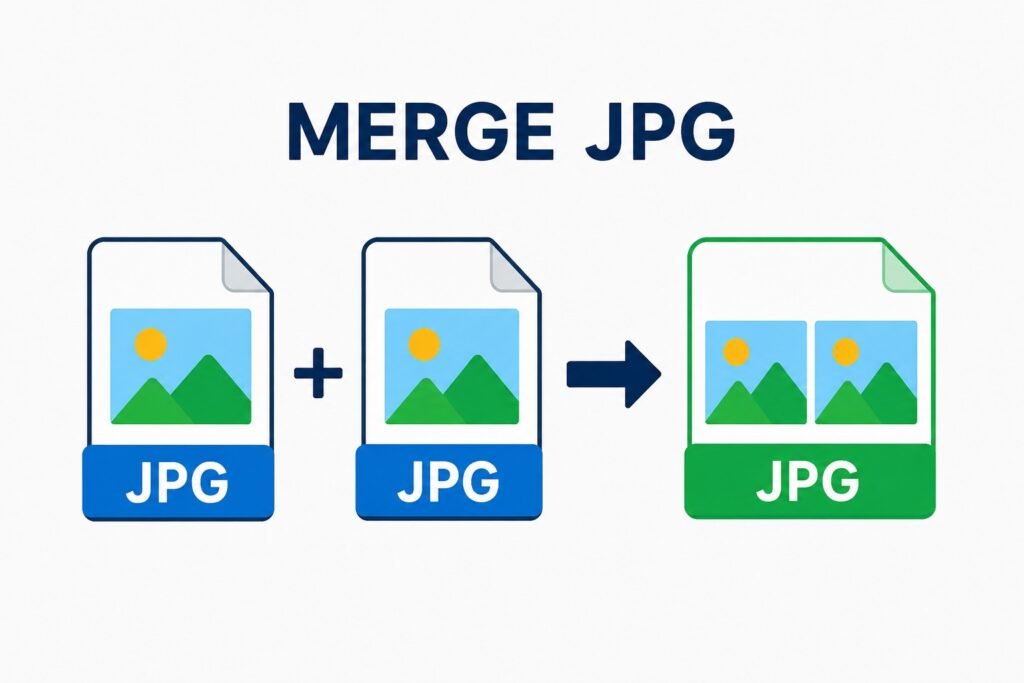
Before we jump into the steps, let us cover when this is actually useful. Merging JPG images into a single file makes sense when:
- You have scanned a multi-page document one page at a time and need to send it as a single image
- You want to create a simple photo collage without using complex design software
- You need to combine before-and-after photos for comparison
- You want to join product images side by side for an online store
- You are merging screenshots into one long image for documentation or tutorials
- You want to save multiple photos in one file for easy sharing
In each of these situations, manually copying images into Photoshop or another paid tool is overkill. An online tool gets you there in under a minute.
What You Need Before You Start
Nothing complicated. Here is all you need:
- Your JPG images saved on your device (phone, tablet, or computer)
- A modern web browser (Chrome, Firefox, Safari, or Edge)
- An internet connection
That is it. No software. No account. No credit card.
How to Merge JPG Files Online
Open the Merge Tool
Go to MergeJPG.com in your browser. The tool loads instantly there is no splash screen, no sign-up wall, and no loading delay. You will see the upload area right away.
→ Try it free: MergeJPG.com — Free Online JPG Merger
Upload Your JPG Files
Click the “Add JPGs” button or simply drag and drop your image files directly into the upload area. The tool supports batch uploads, so you can select all your files at once rather than one by one.
Supported file types for upload include JPG and JPEG. If your files are in a different format like PNG or WEBP, you may want to convert them first, or check if the tool accepts them directly.
Pro Tip: Name your files with numbers before uploading (e.g., 01_photo.jpg, 02_photo.jpg) so they appear in the right order automatically.
Arrange the Image Order
Once uploaded, your images will appear as a preview row. Here is where many people rush and skip an important step: check the order.
If the order is wrong, drag and drop the thumbnails to rearrange them until they are in the sequence you want. This is the order they will appear in your merged file, so take a moment to get it right before continuing.
Choose Your Layout
Next, decide how you want the images to be combined:
- Horizontal — Images are placed side by side, left to right. Good for comparison images, panoramas, or product photo strips.
- Vertical — Images are stacked top to bottom. Ideal for scanned document pages, long-form screenshots, or comic-style layouts.
Select the layout that fits your intended use. You can always come back and re-merge if the result is not what you expected.
Choose Your Output Format
MergeJPG.com lets you choose your output format before merging. Your options are:
- JPG — The default. Great for photos, compact file size.
- JPEG — Functionally identical to JPG, sometimes preferred for compatibility with older systems.
- PNG — Lossless format, larger file size but better for images with text or sharp edges.
- PDF — Ideal if you are merging document pages and want a shareable, printable file.
For most photo merges, stick with JPG. For scanned documents you plan to print or email professionally, PDF is the better choice.
Merge and Preview
Click the “Merge Images” button. The tool processes your images in the browser and generates the merged file in seconds. A preview will appear so you can inspect the result before downloading.
Check that:
- All images are present in the merged output
- The order is correct
- The layout (horizontal or vertical) looks as expected
- The image quality appears sharp and clear
Download Your Merged File
If the preview looks good, click the Download button. Your merged JPG (or whichever format you chose) will save directly to your device’s default downloads folder.
That is the whole process. Start to finish, merging four or five images typically takes under 60 seconds.
Your files are automatically deleted from the server after processing. MergeJPG.com never stores or shares your images.
Tips for Better Results
Match Image Sizes Before Merging
If your images have different dimensions, the merged result can look uneven one image may appear taller or wider than the others. For a clean, uniform result, resize your images to the same width (for vertical merge) or the same height (for horizontal merge) before uploading.
Free tools like Paint (Windows) or Preview (Mac) can handle basic resizing without installing anything new.
Use High-Resolution Originals
The merged output quality is only as good as your source images. If you start with low-resolution JPGs, the merged file will also be low resolution. When possible, use the highest quality originals available.
Keep File Sizes Reasonable
Very large image files (above 10MB each) may take longer to upload depending on your internet speed. If you are merging large files and experiencing slowdowns, try compressing them slightly before uploading. A tool like Tiny JPG can reduce file size without a visible drop in quality.
When a Simple Merge Is Not Enough
MergeJPG.com is perfect for straightforward tasks: combining a few images into a row, stacking scanned pages, or joining screenshots. But if you need advanced editing — like adding text overlays, adjusting opacity between layers, or merging images with transparency — you may want a full image editor like GIMP (free) or Adobe Photoshop.
For the vast majority of everyday merging tasks, though, a dedicated online tool like MergeJPG.com is faster and simpler than launching a full-featured editor.
Frequently Asked Questions (FAQ)
What does it mean to merge JPG files?
Merging JPG files means combining multiple images into a single image. This can be done either vertically, horizontally, or in a grid layout, depending on your needs.
Can I merge more than two images?
Yes. MergeJPG.com supports merging multiple images in one go. There is no fixed limit on the number of files. Upload as many as you need.
Will the quality drop after merging?
No. The tool preserves the original resolution of your images. The merged output maintains the same pixel quality as your source files.
Is it safe to upload my photos?
Yes. Your images are processed directly for the merge and then deleted from the server automatically. MergeJPG.com does not store, analyze, or share your uploaded files.
Does it work on a phone?
Yes. The tool is fully responsive and works on mobile browsers including Safari on iPhone and Chrome on Android. You can upload photos directly from your camera roll.
How can I merge JPG files online for free?
You can use a free online tool like mergejpg.com:
- Upload your JPG images
- Choose layout (vertical, horizontal, or grid)
- Click merge
- Download the final image
No software installation is required.
Do I need to create an account to merge images?
No, most online JPG merger tools do not require registration. You can upload, merge, and download images instantly without signing up.
Is it safe to upload my images online?
Yes, as long as you use a trusted website. Secure tools:
- Use HTTPS encryption
- Automatically delete files after processing
- Do not store your images permanently
Always avoid uploading sensitive or personal images to unknown platforms.
Can I merge JPG files without losing quality?
Yes. A good image merger tool will maintain the original resolution and quality. However, avoid compressing images during the process if quality is important.
Can I merge images on my phone?
Yes, online JPG merger tools work on:
- Smartphones (Android & iPhone)
- Tablets
- Desktop computers
You just need a web browser.
Can I rearrange the order of images before merging?
Yes. Most tools allow you to drag and drop images to change their order before merging.
Is there a limit to how many images I can merge?
This depends on the tool you’re using. Some tools allow unlimited images, while others may limit the number or file size for performance reasons.
What are common uses for merging JPG files?
People merge images for:
- Creating photo collages
- Combining screenshots
- Making before-and-after comparisons
- Preparing documents for sharing
Do merged images increase in file size?
Yes, the final merged image may be larger because it combines multiple images into one file. However, some tools offer compression options to reduce size.
Ready to Merge Your JPGs?
You now know everything you need to combine JPG images online. The process is simple, the tool is free, and your files stay private. Give it a try:
→ Try it free: Merge JPG Files Free — MergeJPG.com